
Turn Excel into a team app: a look at Spreadsheet into App
We tested pasting a fictional table into spreadsheetto.app and following the Teable handoff. Four real screenshots show the entry flow, use cases, and limits of our test.

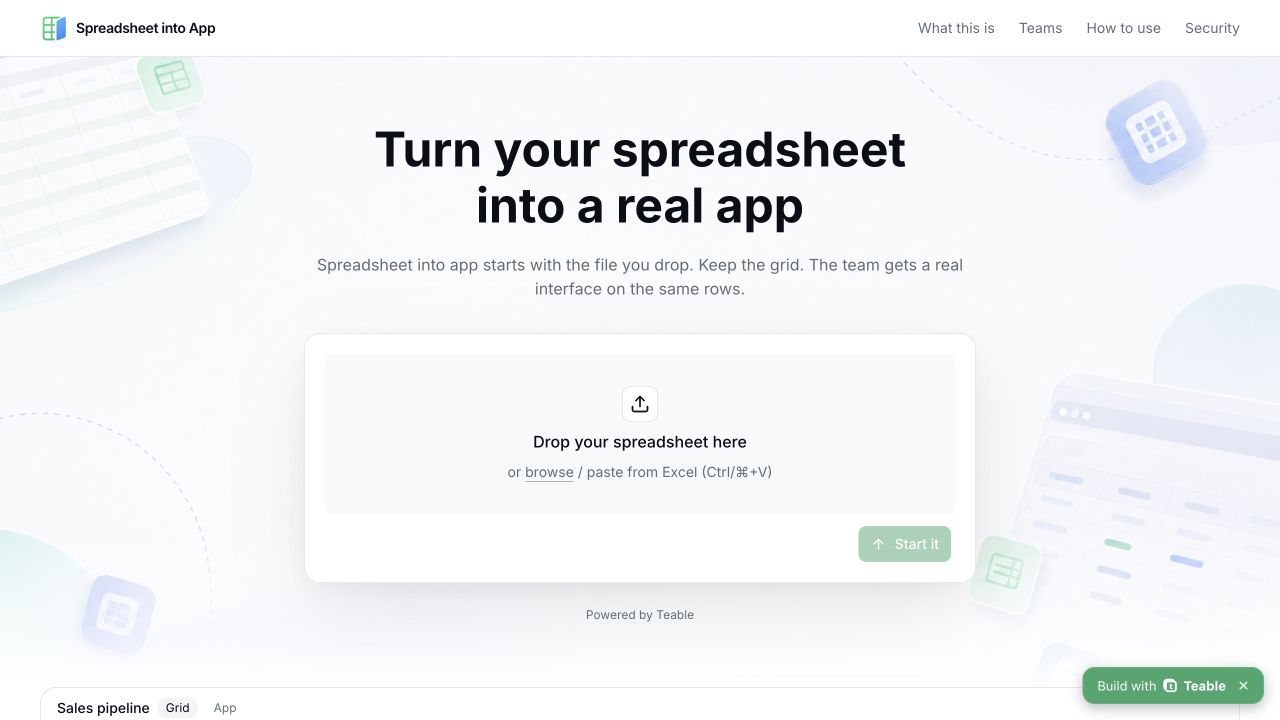
A project tracker feels straightforward when you use it alone. Share it with a team and the questions multiply: who fills it in, who can edit it, which tasks are overdue, and how do you check it on a phone?
The data is already there. What we want next is a useful interface for each person.
Spreadsheet into App starts at that point. It accepts Excel files, CSV files, and pasted cells. According to the website, you can keep working in a table after importing your data and build an app around the same records. The homepage identifies Teable as the platform behind it.
We tried the entry flow with a small fictional dataset. Pasting data, getting a file entry, and pressing Start all produced visible results. Continuing into app generation required a Teable account. Our test stopped at the sign-up and login screen.
Here is what we observed, how the product is meant to work, and where it might fit.
Written by pdf2md team. Pages checked and screenshots captured on September 10, 2026. The cover and all illustrations are genuine browser screenshots.
Give the table another interface
Imagine an editorial calendar: one article per row, with an owner, a status, and a due date.
Editors update their assignments. Reviewers need a list of drafts awaiting review. The person managing the schedule wants to see upcoming deadlines. If everyone opens the full spreadsheet, each person has to filter it first.
Spreadsheet into App proposes putting interfaces on top of those records. The people maintaining the data can keep using the grid. Others can work through forms, lists, or dashboards.
The product explanation says the table and app share the same records. That refers to the table and app inside the platform. We found no statement that the original Excel file on your computer would sync automatically. Do not assume that it does.
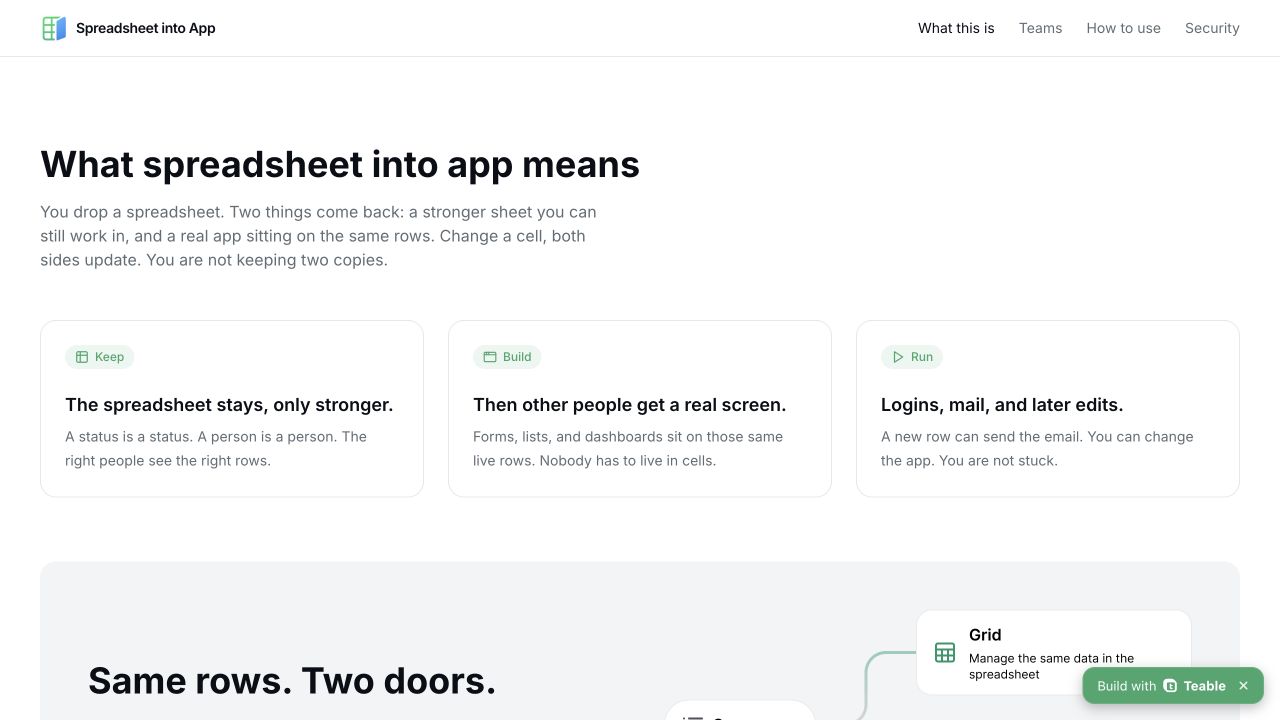
An actual screenshot of the product explanation. It describes the intended design; we did not test updates between the two interfaces.
We like the prospect of reusing data that is already organized. A team would not have to start with an empty system and move old rows across individually.
A usable interface still needs clear data. If one status column mixes Complete, Completed, and Done, filters can split them into three groups. Standardizing those values is usually more useful than changing the page colors first.
What we actually tried
The import area is on the first screen. You can choose a file or paste cells. There is no long configuration form beside it. The button is labeled “Start it.”
We prepared three fictional records with four fields: Project, Owner, Status, and Due date. None of the entries contains business or personal information. The field names and values below match the test data.
| Project | Owner | Status | Due date |
|---|---|---|---|
| Help center | Editor A | In progress | 2026-09-20 |
| Product FAQ | Editor B | To do | 2026-09-25 |
| Release notes | Editor C | Done | 2026-09-10 |
After we pasted the cells, a CSV file entry appeared. Its automatically generated filename began with pasted-sheet. The “Start it” button then became available.
That saves an export step when you already have the cells selected. The website FAQ also says you can copy cells from Excel or Google Sheets and paste them directly.
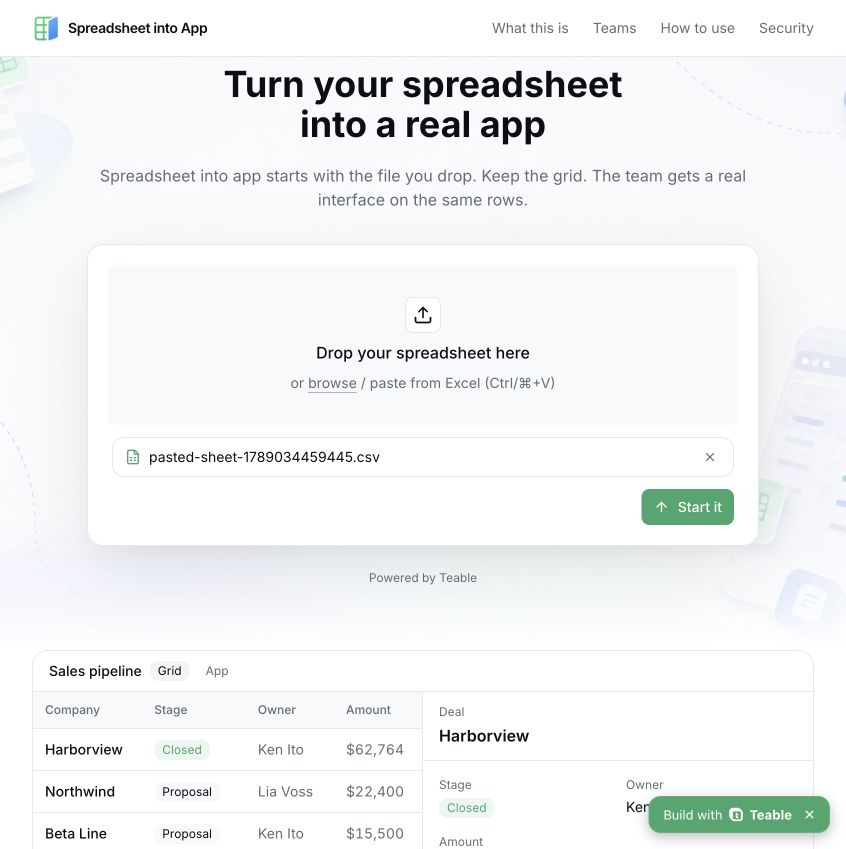
The actual state after pasting. The Sales pipeline panel underneath is a built-in homepage example, not an app generated from our three records.
We clicked “Start it.” The browser moved to app.teable.ai and opened the sign-up and login entry point. We were not signed in, so we did not continue with app generation.

The destination shown to a signed-out visitor. No email, password, or account information was entered.
This confirms that the entry page accepts pasted data and hands the flow over to Teable. Generation quality, processing time, and editing results still need testing inside an account. The homepage example cannot stand in for those results.
Which spreadsheets to try first
We would start with a task list. Its structure is easy to understand, and it is easy to judge whether the resulting interface helps.
For the editorial calendar above, we would check three things in a first version: filtering pending tasks, opening a single record, and updating its status. Let one colleague complete those actions before adding a reporting page.
The team use cases include sales, operations, and recruitment. A few spreadsheets have particularly clear interface needs:
- Sales tracking. Keep the customer, owner, and stage in each record. Salespeople need follow-up lists; managers need a view of the pipeline.
- Internal requests. Colleagues submit requests through a form, while the people handling them work through pending records.
- Project tasks. Use owners, statuses, and due dates to organize task lists and detail pages.
These are directions to test, not confirmed outputs from our session. Approvals, notifications, and access rules still need configuration and verification, even when they appear in the product description.
Choose a small table with clear column names and a consistent meaning for each row. An annual report full of merged cells is a harder starting point. Formulas, notes, and layered headers often need cleanup first.
Check these before going further
Import coverage. The website lists Excel, CSV, and pasted cells, and says empty files are rejected. That does not establish that formulas, macros, or relationships between worksheets are preserved. We did not test them.
Accounts and allowances. Our signed-out session reached Teable’s sign-up page. The homepage we checked did not display specific subscription prices or generation limits. Check the current Teable account plan before estimating cost. An upload box alone does not mean the entire workflow is free.
Access rules. The website describes public, company-only, and invitation-only access. Before sharing with a team, check who can view, who can edit, and which records each person can reach.
Code export. The website says the app uses Next.js and can be downloaded or placed on GitHub. The FAQ also describes ways to edit it later. We did not export code, so the contents of that export still need checking.
For a trial table, inspect the generated result first. Before a team starts relying on it daily, review allowances, permissions, and maintenance together.
Where it fits in a document workflow
Many pdf2md readers begin with a PDF: a report, a manual, or project documentation that needs to become readable, editable Markdown.
The next task may be to collect projects, tasks, or other entries into a list that a team will maintain. Spreadsheet into App offers a possible next step once that list is ready.
There is still a cleanup stage between the two. Check column names, line breaks, dates, and numbers in Markdown tables before arranging them as Excel or CSV data. PDF and Markdown files are not among the inputs confirmed here.
We would organize the document first, identify the records that need ongoing updates, and make a small, checked table. Then we would test how an app interface changes the collaboration.
If you already have that kind of list, open spreadsheetto.app and begin with a few fictional rows. Inspect the result after signing in before deciding whether to move real data into it.